Project Actions
The Project group holds actions that structure the scenario itself rather than drive the robot.
Section and Comment moved here from Flow, and Import Scenario from Import. Input Form is new.
Section
Groups related actions under a collapsible header. Pinned action.
Sections are the main tool for keeping a long scenario readable: collapse the parts you are not working on, and run a single section on its own while developing.
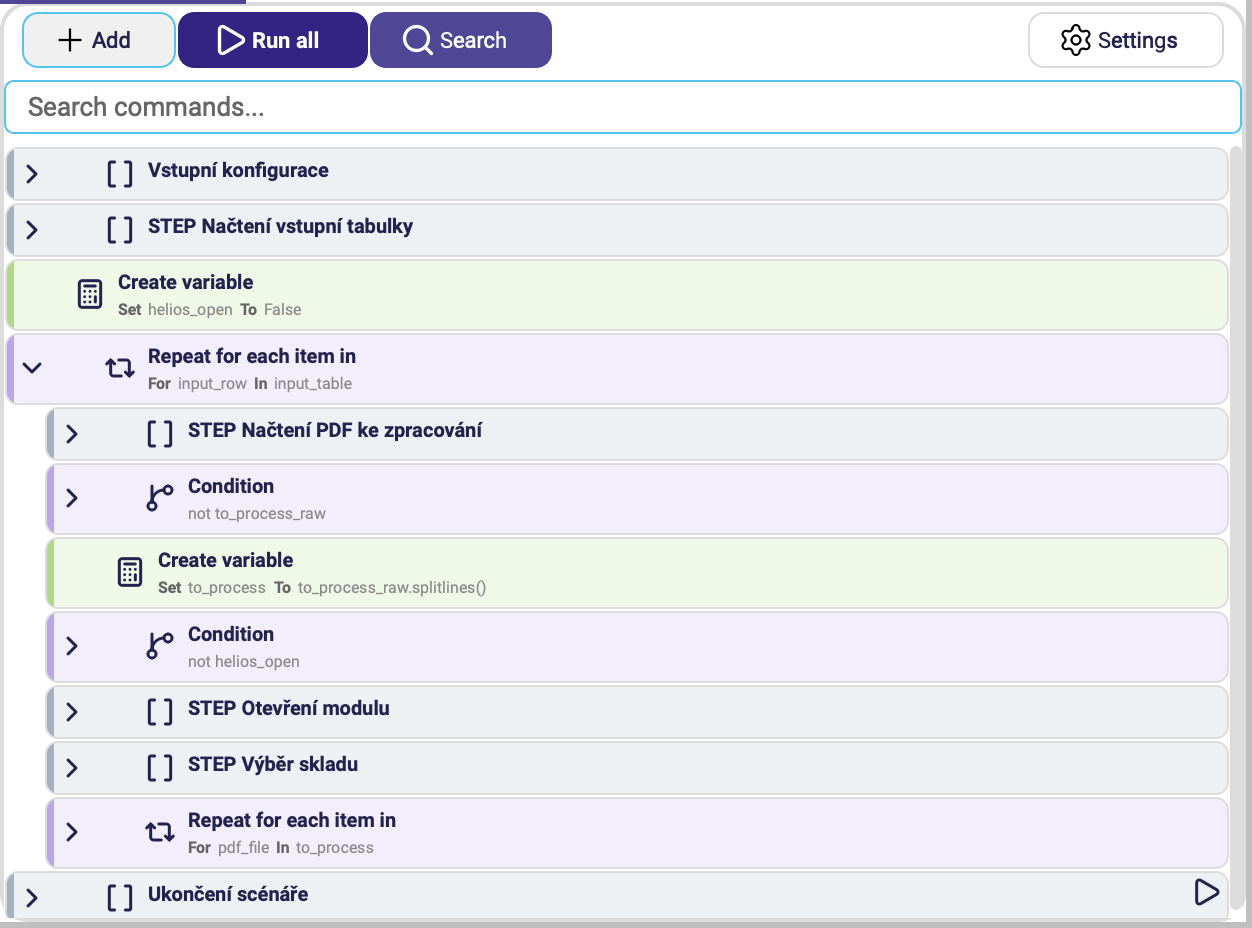
| Parameter | Description |
|---|---|
| Section name | Label shown on the collapsed group. |
| Description | What the section should do, in plain words — for example Open the invoice overview and click "Download invoice". Optional. |
A section with a Description is written by the AI: when the run reaches it, the AI writes the section's actions from the description, using what is on the screen and the variables at that moment. The actions are kept for the next run and written again only when the description changes. A section whose actions you built by hand is never rewritten.
Sections created from a scenario template get their Description from the template text, and editing it here updates the template.
Comment
Inserts a note for yourself or your colleagues. Has no effect on execution.
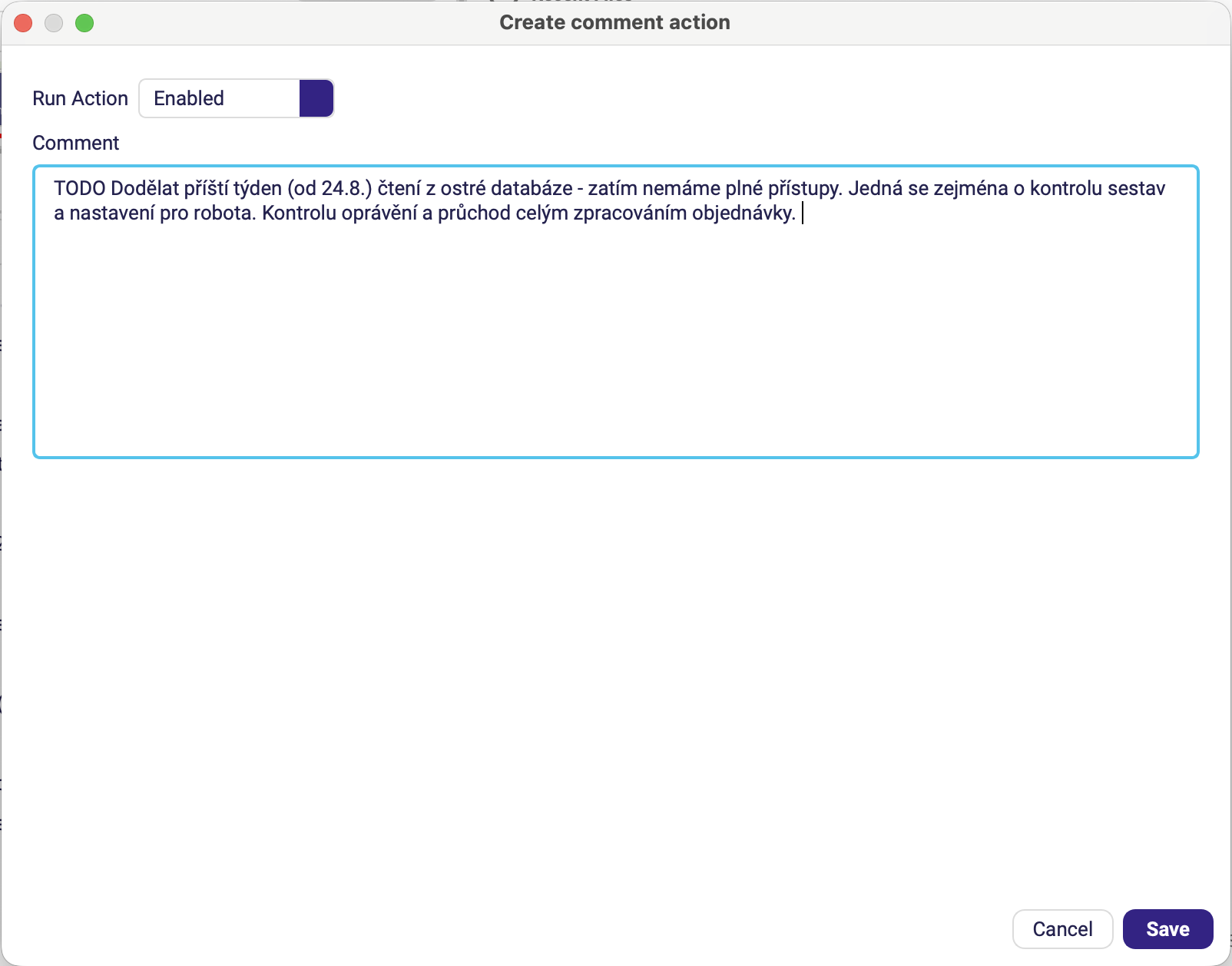
In the Commands tree the note renders as its own row, with the text truncated to the width of the panel:
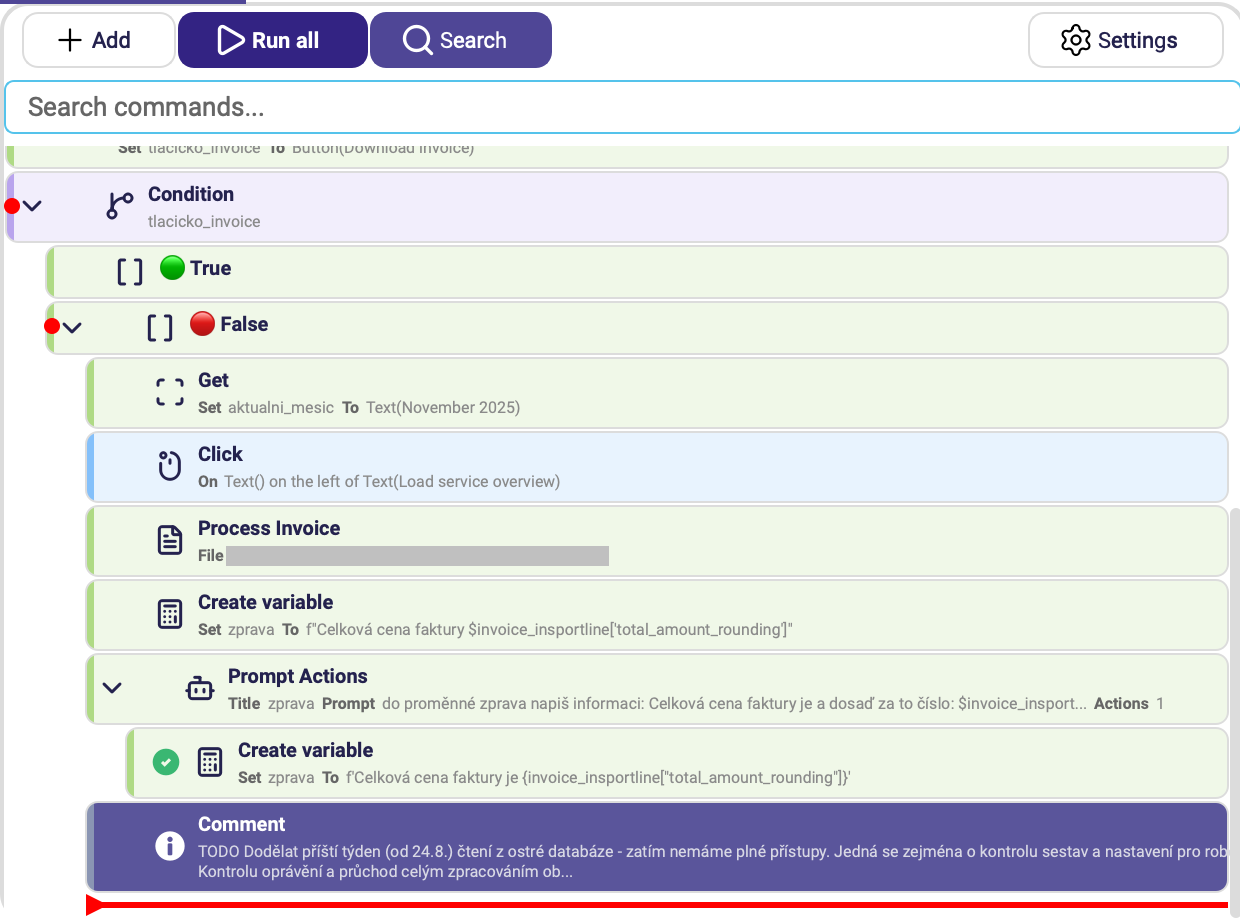
| Parameter | Description |
|---|---|
| Comment | Free-form text. |
Comment the why, not the what — the action list already says what happens. "This dialog only appears on the first login of the day" is worth writing down; "clicks OK" is not.
Input Form
Pauses the run and asks the person at the keyboard for values, which are then available as variables. Use it for the inputs that cannot be known in advance — a date range, a customer number, a one-off file path.
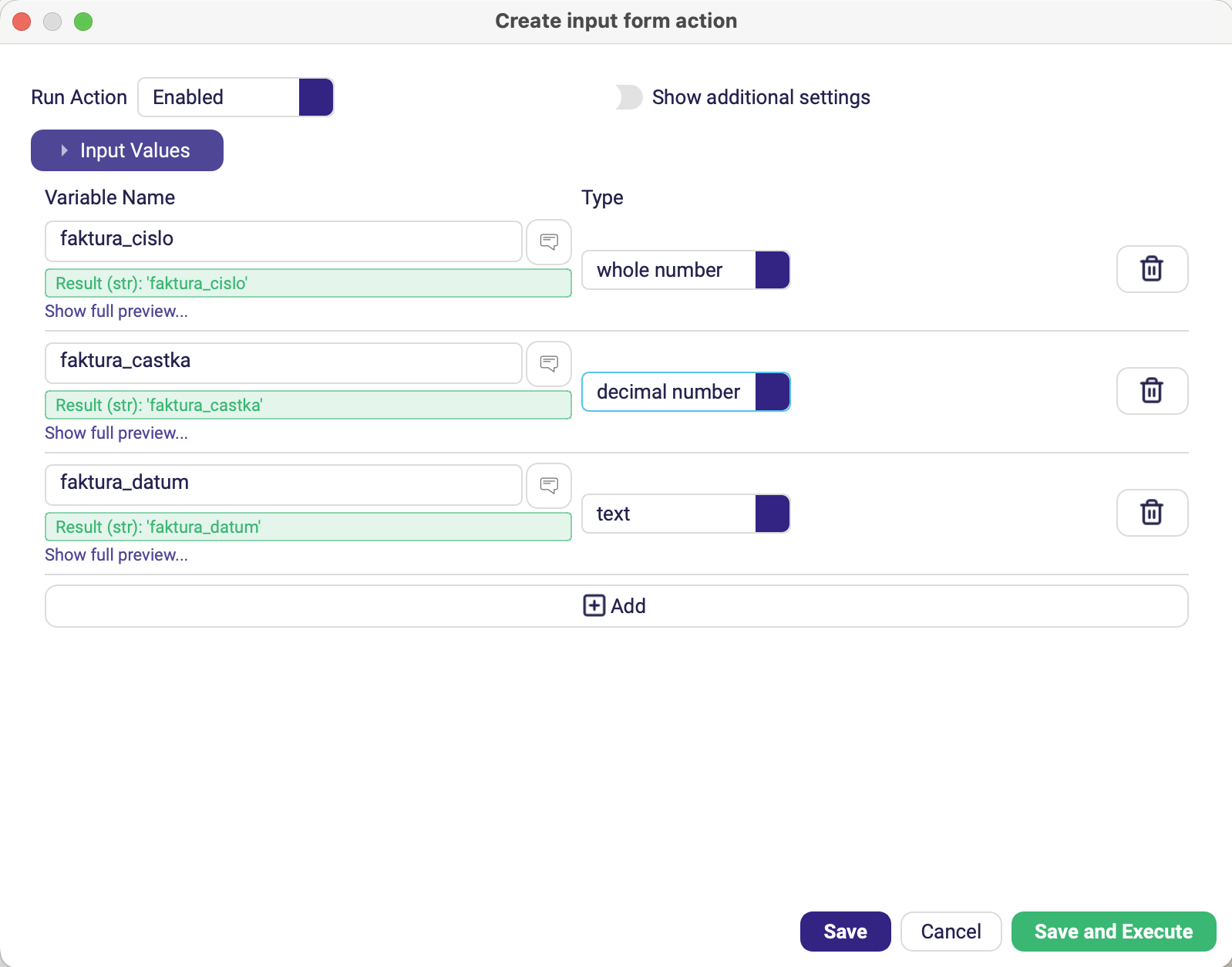
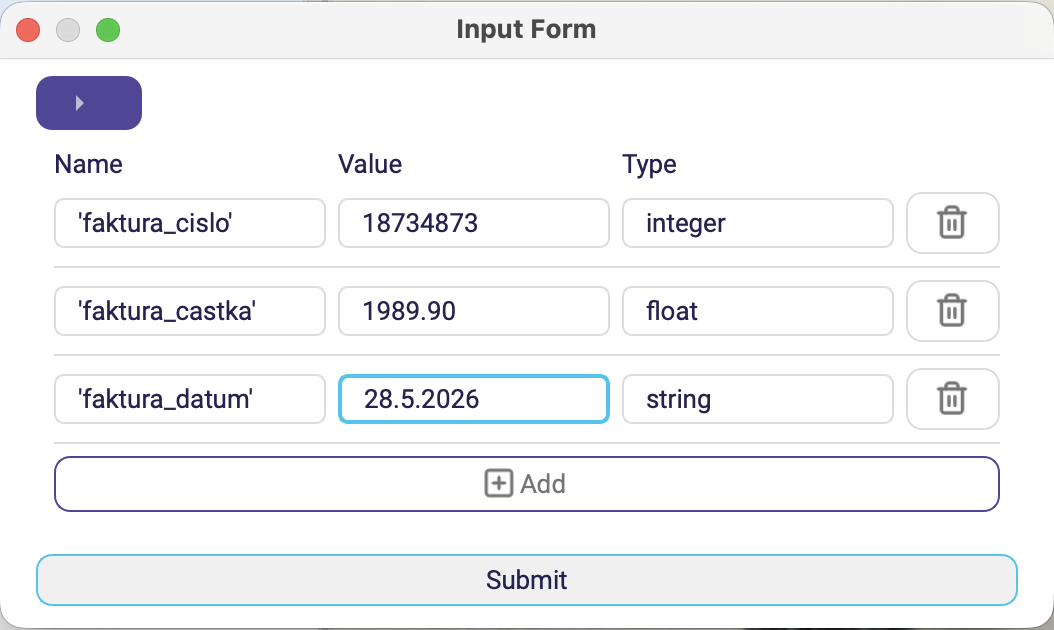
At runtime the operator gets a dialog with one row per value, pre-labelled with the variable name and its type, and fills in the Value column before pressing Submit:
| Parameter | Description |
|---|---|
| Input Values | The fields to ask for. Each row is a variable name plus its type — string, integer, float, boolean or a file path. |
| Require All Values | When on (default), the action fails if the operator leaves every field empty. (Advanced options) |
Input Form blocks the run until somebody answers it. A scheduled, unattended scenario will sit there until it times out — keep interactive forms out of anything the Orchestrator runs, or gate them with Enabled (Test) so they only appear while you are developing.
Import Scenario
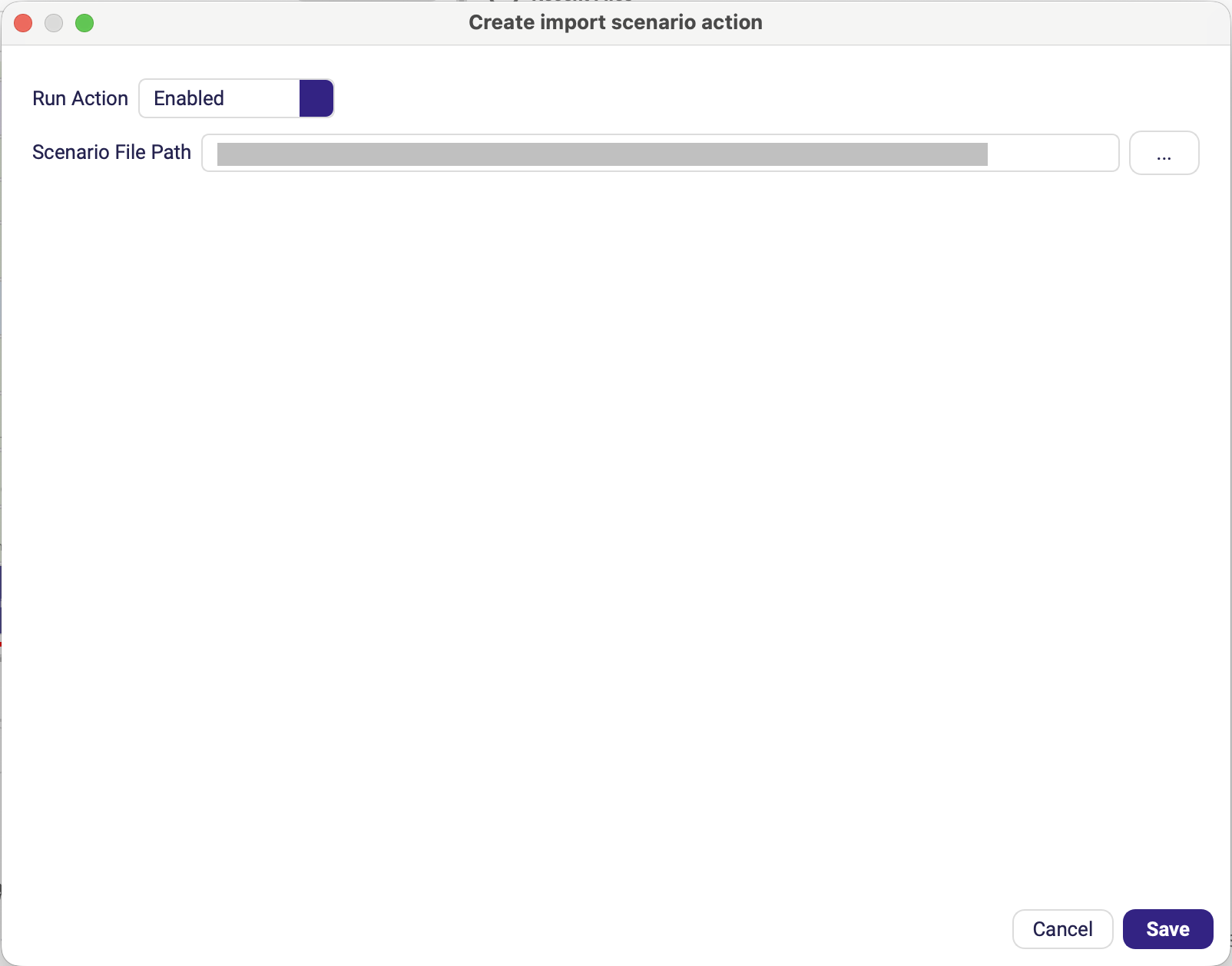
Imports actions from another scenario file into this one — the way to reuse a login sequence or a shared cleanup routine across projects.
| Parameter | Description |
|---|---|
| Scenario File Path | Path to the .json scenario file to import. |