Tools Actions
The Tools group holds the workhorses that do not belong to a single input device — reading values off the screen, creating variables, running SQL or Python, opening URLs.
Tools replaces the old Other and Input Actions groups. Get moved here from Input, Create variable from Flow, and Execute SQL and Python Code from Other. The new Log action lives here too.
Up to 0.23.x there were three overlapping ways to make a variable: the Constant action, the Create variable action, and a Prompt input hidden in the Variables panel. Since 0.24.0 there is one — Create variable — and it handles everything from a fixed value to a computed expression.
Constant is gone from the actions menu and the Prompt button has been removed from the Variables panel. Existing scenarios convert automatically when opened; there is nothing to migrate by hand.
Get
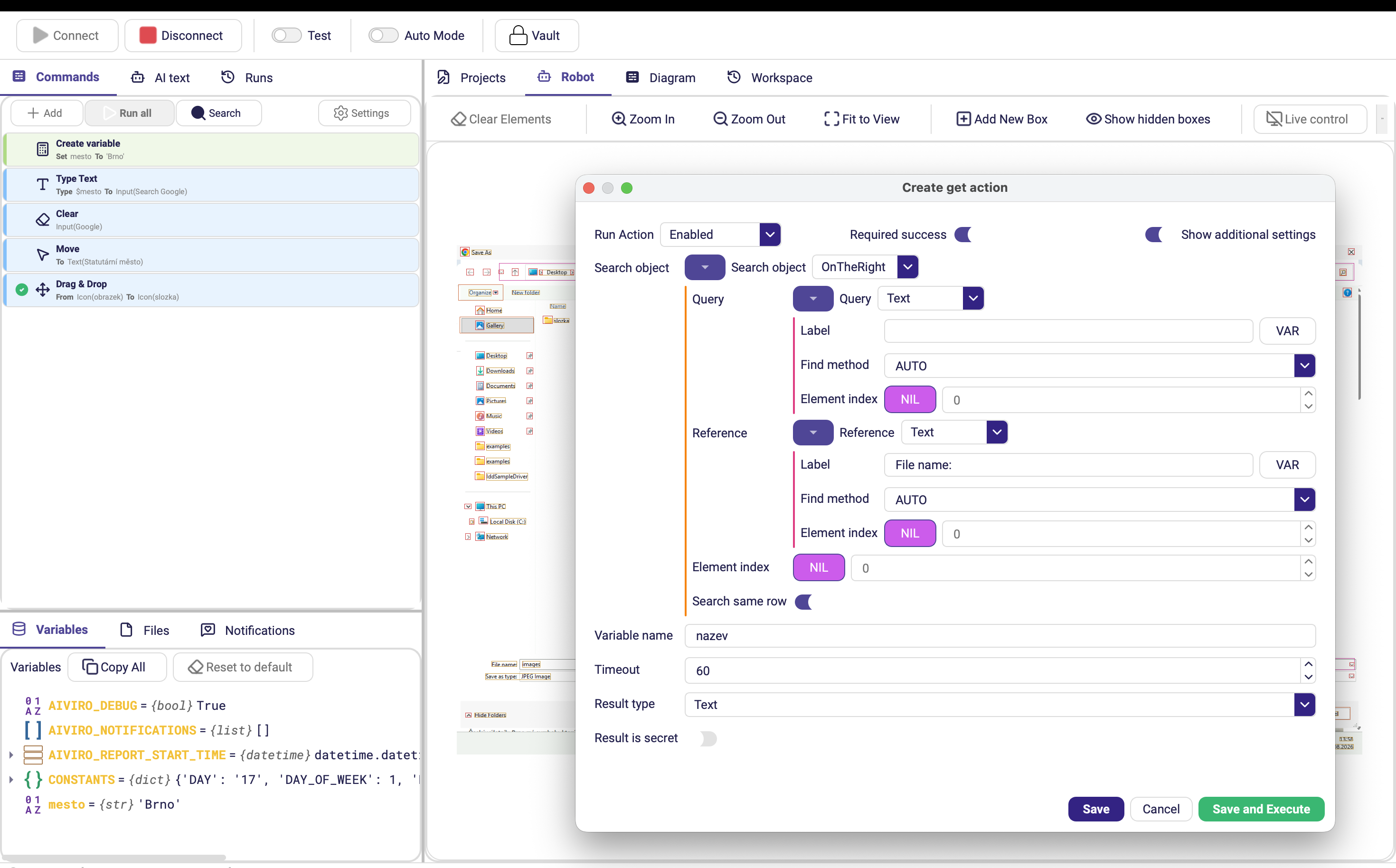
Reads a value from the controlled screen into a variable. Pinned action, shortcut Ctrl+Shift+G.
| Parameter | Description |
|---|---|
| Search object | What to read. |
| Variable name | Variable that receives the result. |
| Required success | Stop the scenario if the value cannot be read. |
| Timeout | Maximum time to search for the element, in seconds. Default 60. |
| Result type | What to store — see the table below. Default text. |
| Result is secret | Masks the value in logs and screenshots. Default off. Only shown while Result type is text — the only case where it has an effect. |
| Result type | Stores |
|---|---|
| text | The recognized text. |
| regex | The part of the text captured by the search object's regular expression. |
| is_visible | True/False — whether the element was found at all. Nothing is read. |
| raw | The raw element data, for advanced use in Python Code. |
is_visible turns Get into a screen test: read it into a variable and branch on it with Condition, instead of relying on a failing action.
Create variable
Creates a variable, or reassigns one, from an expression. Shortcut Ctrl+Shift+V.
/img/editor/actions/tools/create_var.pngCapture: the Create variable form showing the Assignment row — the name
field, the value field and the VAR button.
Note: the old image is actions/flow/create_var.png.
| Parameter | Description |
|---|---|
| Assignment | The variable name plus the value assigned to it. |
Write the value as ordinary text and mark variables and constants with $:
Rate_$CONSTANTS['FULL_DATE'].txt
Python f-strings are no longer needed — the field understands plain sentences with
variables in them. Full rules are on Values & Expressions;
the list of CONSTANTS is in
References & Resources.
Log
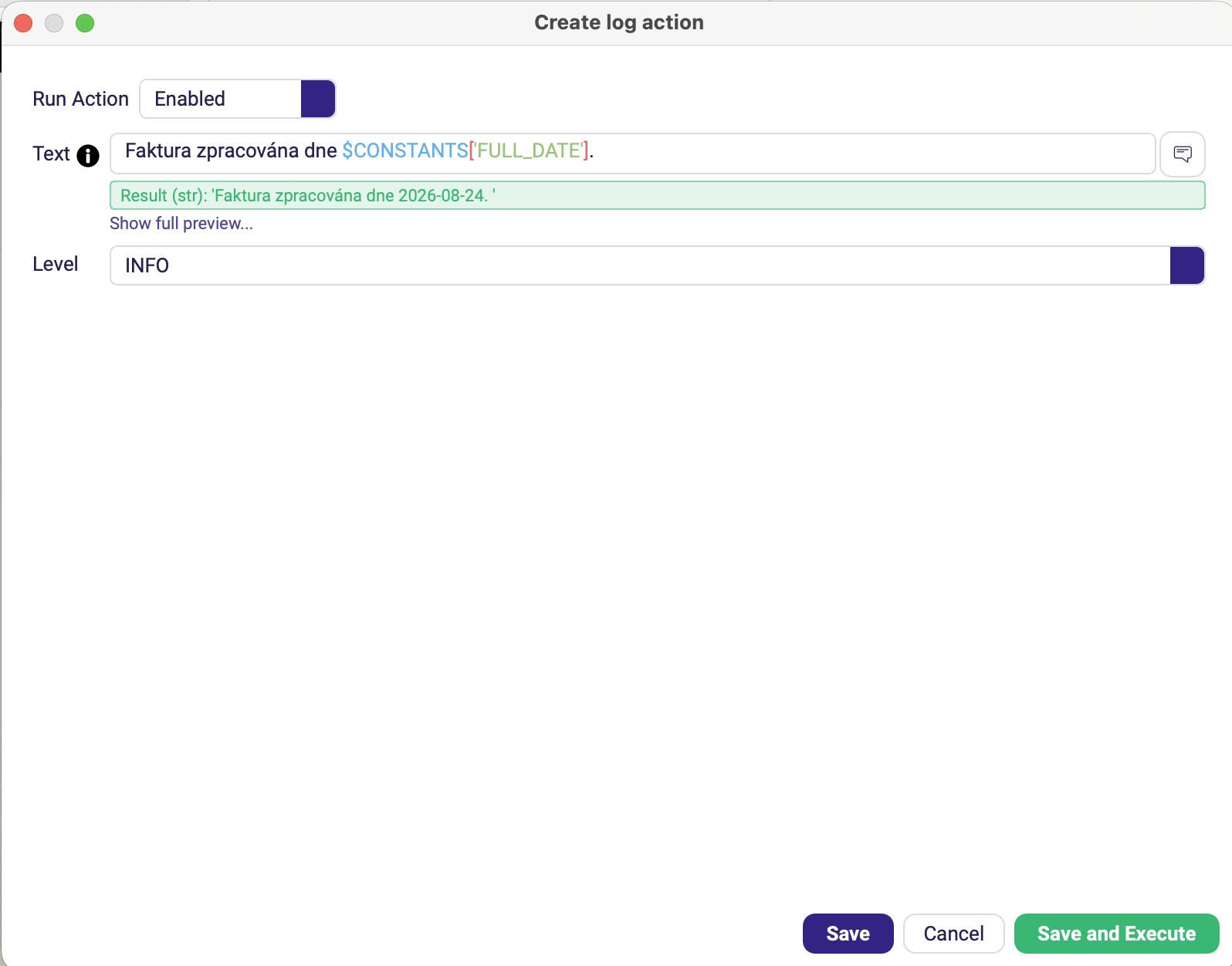
Writes your own message into the run log at any point in the scenario. New in 0.24.0.
| Parameter | Description |
|---|---|
| Text | The message to write. Accepts variables. |
| Level | Severity: Debug, Info, Warning or Error. |
The entry shows up in the run's Logs tab alongside the Editor's own messages, and the level feeds the log-level filter there — see Runs panel.
Log and Add Message look similar but serve different readers. Log writes for you, into the technical run log you read while debugging. Add Message (Notification) writes for the business, into the e-mail report someone reads over coffee.
Python Code
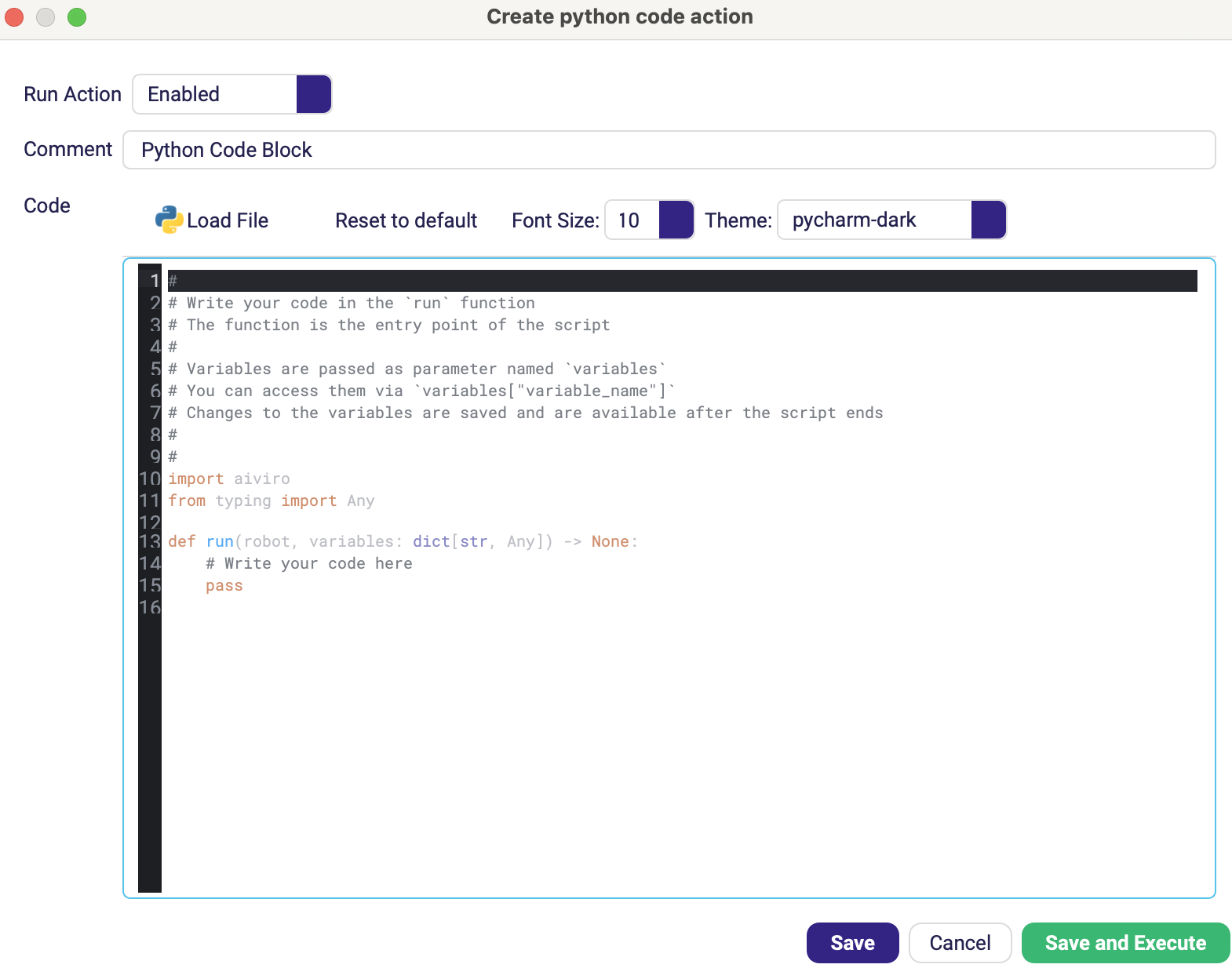
Runs an embedded Python block. Variables from the scenario are available inside it, and anything the block assigns comes back out.
| Parameter | Description |
|---|---|
| Comment | Short label shown on the action in the tree, so the block is identifiable without opening it. Default Python Code Block. |
| Code | The Python source to execute. |
Execute SQL
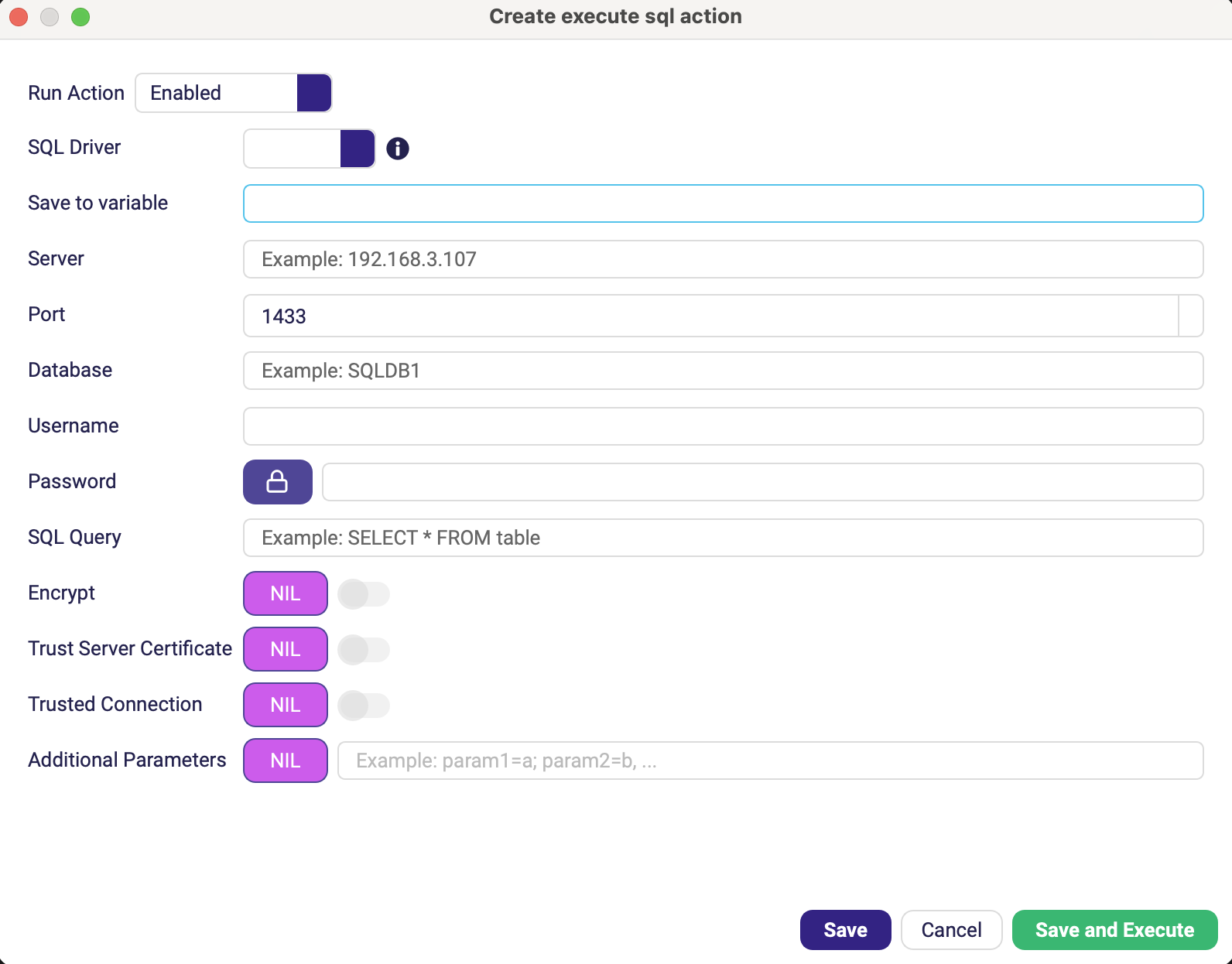
Runs an SQL query through the system ODBC driver. Available on Desktop and RDP robots.
| Parameter | Description |
|---|---|
| SQL Driver | ODBC driver to use, picked from the drivers installed on the machine. |
| Server | Hostname or IP of the database server. |
| Port | Listening port. Default 1433. |
| Database | Target database name. |
| Username / Password | Login credentials. Reference the password from the Vault rather than typing it in. |
| SQL Query | The statement to run. |
| Save to variable | Variable that receives the result set. |
| Encrypt | Enables TLS for the connection. Optional. |
| Trust Server Certificate | Accepts self-signed or otherwise untrusted certificates. Optional. |
| Trusted Connection | Uses Windows authentication instead of username and password. Optional. |
| Additional Parameters | Extra connection-string options, as param1=a; param2=b. Optional. |
The ODBC driver must already be installed and configured on the machine that runs the robot — the Editor does not ship one. See System Requirements.
Open URL
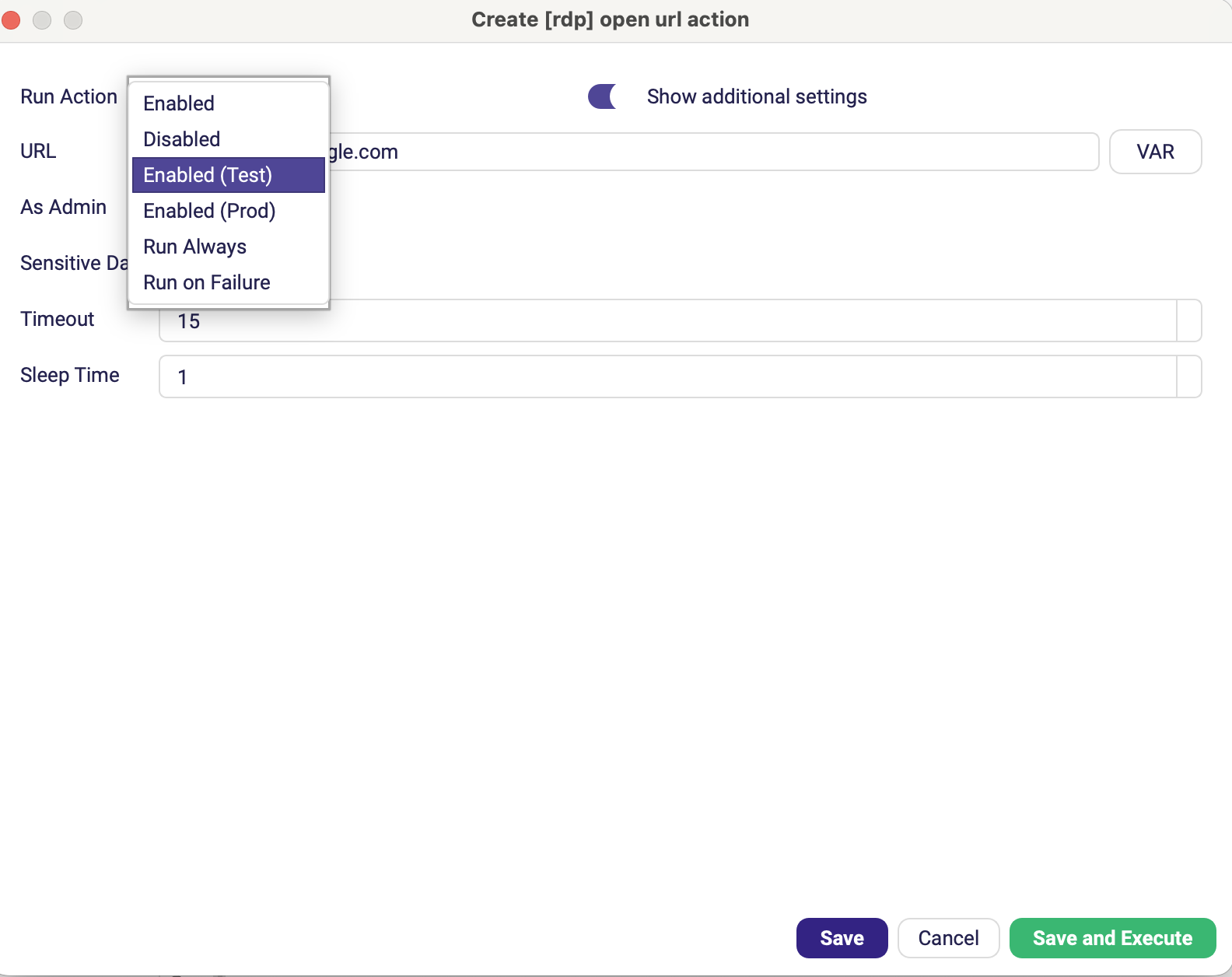
Navigates the browser. Open URL is the Web-robot version; [RDP] Open URL starts the default browser inside the remote session.
Open URL (Web)
| Parameter | Description |
|---|---|
| URL | Address to open. Accepts variables. Default https://www.google.com. |
[RDP] Open URL
| Parameter | Description |
|---|---|
| URL | Address to open. Default https://www.google.com. |
| As Admin | Starts the browser elevated. (Advanced options) |
| Sensitive Data | Keeps the URL out of the logs — use it when the URL contains a token. (Advanced options) |
| Timeout | How long to wait for the browser to start, in seconds. Default 15. |
| Sleep Time | Pause after the browser starts, in seconds. Default 1. |