Secure Vault
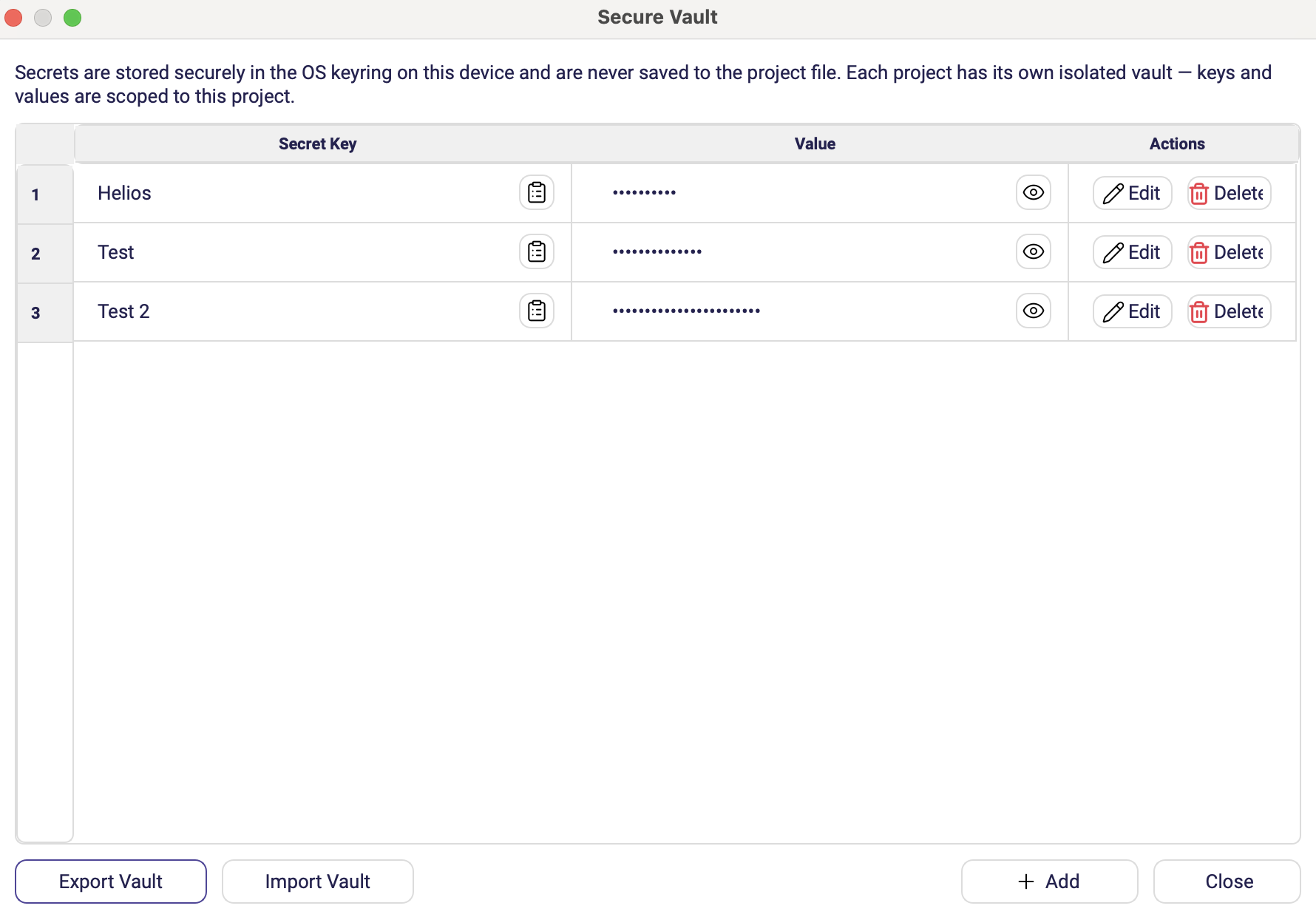
The Secure Vault stores the passwords, tokens and e-mail accounts your scenarios need. Values live in the OS keyring of the machine — they are never written into the project file, so a project can be committed to Git and shared with colleagues without leaking credentials.
Each project has its own isolated vault: keys and values are scoped to that project.
Open it with the Vault button in the main toolbar.
Using a secret in a scenario
Reference a key with the placeholder syntax:
{{SECRET:MY_KEY}}
Write it into any text parameter — an SQL Password, a Slack Token, a Teams Webhook URL, a command line. The placeholder is resolved at run time and the real value never appears in the project file.
Secrets are resolved wherever plain text is accepted, so {{SECRET:DB_PASSWORD}} works
just as well inside a longer connection string as it does on its own in a password field.
Managing entries
The dialog lists every key with its value hidden. Per row you can:
| Action | Effect |
|---|---|
| Show / Hide secret value | Reveals the stored value temporarily. |
| Edit | Opens Edit Secret to change the value, the type, or the key name. |
| Copy key | Copies the key name, ready to paste into a {{SECRET:…}} placeholder. |
| Delete | Removes the entry from the keyring. Asks for confirmation. |
Add opens Add Secret, where you give the entry a Key, choose its Type, and fill in the value.
A key can be registered with an empty value. It then shows as not yet set — useful when you hand a project to a colleague and want the required keys listed for them to fill in.
When the keyring refuses
Adding, editing and deleting a secret all write to the machine's OS keyring, and that write can fail — a locked keyring, a policy that forbids it, no keyring service running at all.
The Editor now reports it. The operation stops with a Vault Error dialog reading The Vault could not be updated, followed by the reason the keyring gave, and the list keeps showing what the vault really holds.
Up to 0.24.0 a refused write failed silently: the dialog simply closed and the list redrew as though the change had gone through. The scenario then failed much later with an empty secret. Renaming a key could lose both the old and the new entry at once.
Renaming is now safe as well — Edit Secret writes the new key before removing the old one, so a rename that fails half-way leaves the original secret intact.
Entry types
Password
A single string — a password, an API key, a token, a webhook URL.
| Field | Description |
|---|---|
| Key | Name you reference as {{SECRET:KEY}}. |
| Password | The value. Masked while typing. |
Email Account entries
A structured credential for the Email actions. One entry can hold a Receiving (IMAP) half, a Sending (SMTP) half, or both — fill in only the half you need.
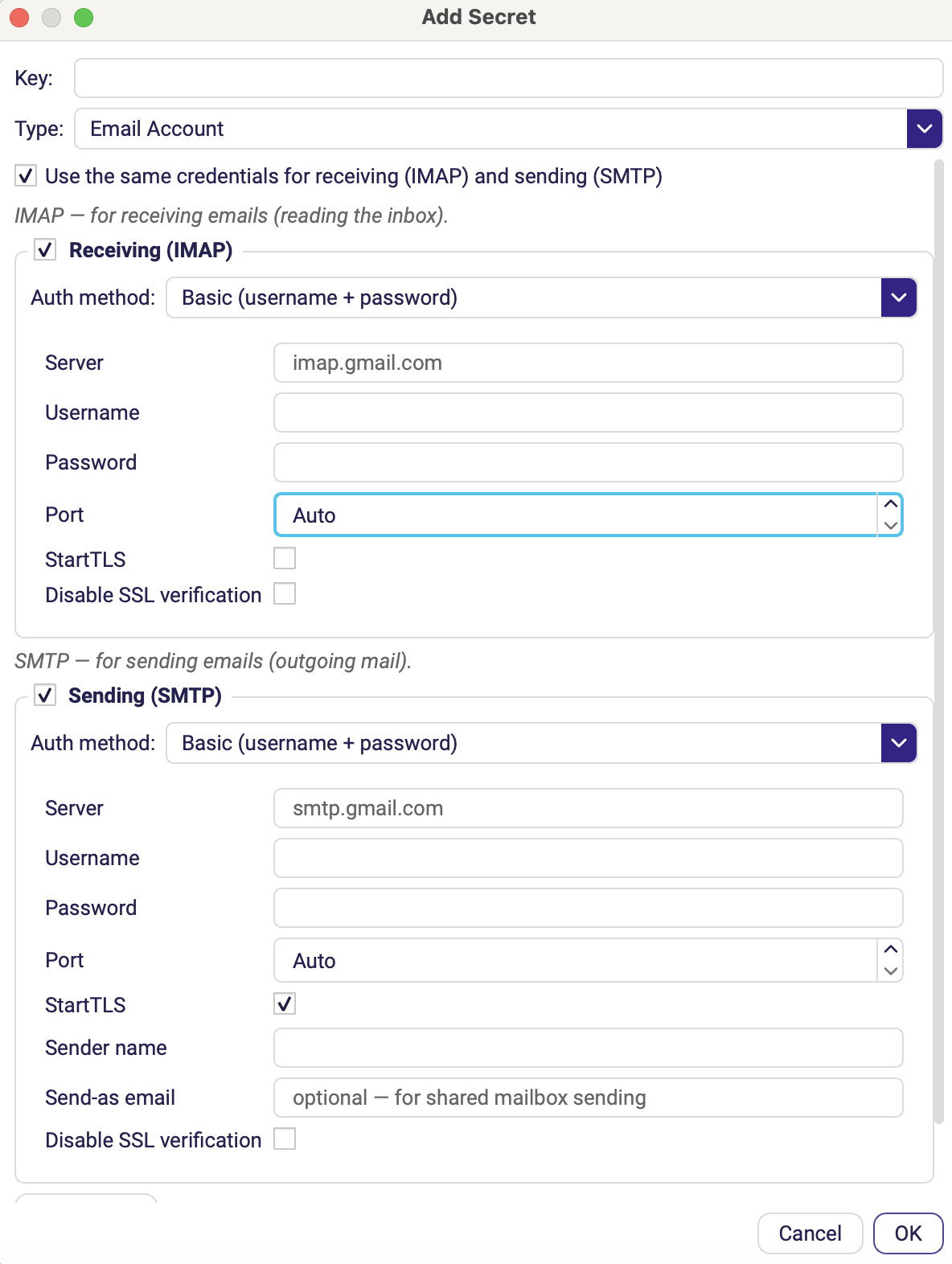
Each half starts with an Auth method:
| Auth method | When to use it |
|---|---|
| Basic (username + password) | Standard IMAP/SMTP with a password or app password. |
| Outlook OAuth2 (client secret) | Microsoft 365 mailboxes using a registered application. |
| Exchange (Exchangelib) | On-premise or hybrid Exchange servers. |
Basic fields:
| Field | Description |
|---|---|
| Email address | The mailbox address. |
| Username | Login name — usually the same as the address. |
| Password | Mailbox password or app-specific password. |
| Server | IMAP or SMTP host. |
| Port | Service port. Auto picks the standard port for the protocol. |
| StartTLS | Upgrades the connection with STARTTLS. (SMTP) |
| Disable SSL verification | Skips TLS certificate validation. Only for internal servers with self-signed certificates. |
| Sender name | Friendly From name. (SMTP) |
| Send-as email | Alternate sender address, for sending on behalf of a shared mailbox. (SMTP) |
Outlook OAuth2 fields:
| Field | Description |
|---|---|
| Email address | Mailbox the application acts on. |
| Client ID | Application (client) ID from your Azure app registration. |
| Client secret | Secret value of that registration. |
| Authority URL | OAuth authority, e.g. https://login.microsoftonline.com/common. |
Test Connection — or Test IMAP / Test SMTP when both halves are filled in — verifies the credentials before you save, and reports the failure inline if something is wrong.
Test both halves before building the scenario. An authentication problem found here takes a minute to fix; the same problem found during a scheduled run at 03:00 costs a whole night's batch.
Import and export
| Button | Effect |
|---|---|
| Export Vault | Writes all keys and their values to a .vault file. This is also the file you hand to a headless run with --vault-file. |
| Import Vault | Reads keys and values from a .vault file into the current project's vault. |
This is how you move a project to another machine, or to the VM that will run it unattended.
A .vault file contains the secrets in plain text. Treat it exactly like a password
list: transfer it over a secure channel, never commit it to Git, and delete it once the
import is done.
Missing keys
When you open a project whose scenarios reference keys this machine does not have, the Editor tells you which ones are missing before the run fails.
/img/editor/vault/missing-keys.pngCapture: the missing-keys dialog listing two or three key names that the project needs but the local vault does not hold. Not the run-time failure: the supplied shot was the Action Failed dialog reporting one undefined name from a Type Text action. That is what happens when the run reaches a missing key, not the dialog the Editor shows when it opens the project.
Fill them in with Add, or bring them over with Import Vault.
Outside the Editor there is no dialog to show. A headless run whose secret is missing logs a warning and carries on rather than stopping, so the scenario fails later — and less obviously — on the empty value. Read the log of a scenario's first unattended run, not just its exit code.
Good practice
- One key, one purpose.
PROD_DB_PASSWORDandTEST_DB_PASSWORDrather than one sharedDB_PASSWORD— combined with Enabled (Test) / Enabled (Prod) on the actions, the same scenario then runs safely in both environments. - Never inline a credential, not even temporarily. A password typed into a parameter is saved into the project file the moment you press Save Project, and stays in the Git history afterwards.
- Reserved keys. Some internal key names are reserved and rejected with a Restricted Key message. Pick a different name.
- The vault is per machine. Keys stored on your workstation do not travel with the
project file — the VM that runs the scheduled scenario needs its own copy, or an exported
.vaultfile passed to the run with--vault-file, which needs no keyring on that machine at all.